TextField
A material design text field.
A text field lets the user enter text, either with hardware keyboard or with an onscreen keyboard.
Examples
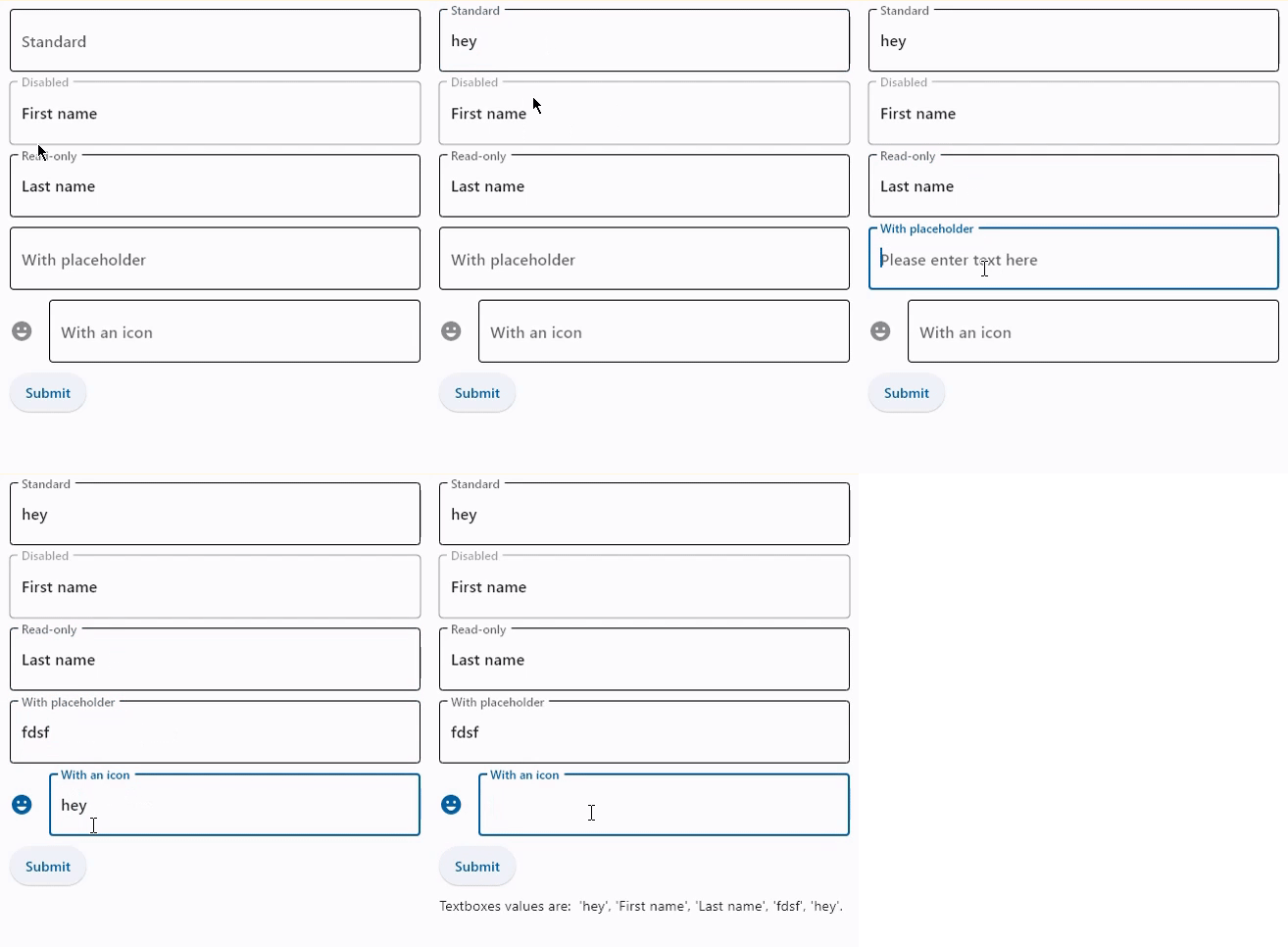
Basic TextFields
- Python
import flet as ft

def main(page: ft.Page):
    def button_clicked(e):
        t.value = f"Textboxes values are:  '{tb1.value}', '{tb2.value}', '{tb3.value}', '{tb4.value}', '{tb5.value}'."
        page.update()

    t = ft.Text()
    tb1 = ft.TextField(label="Standard")
    tb2 = ft.TextField(label="Disabled", disabled=True, value="First name")
    tb3 = ft.TextField(label="Read-only", read_only=True, value="Last name")
    tb4 = ft.TextField(label="With placeholder", hint_text="Please enter text here")
    tb5 = ft.TextField(label="With an icon", icon=ft.icons.EMOJI_EMOTIONS)
    b = ft.ElevatedButton(text="Submit", on_click=button_clicked)
    page.add(tb1, tb2, tb3, tb4, tb5, b, t)

ft.app(target=main)
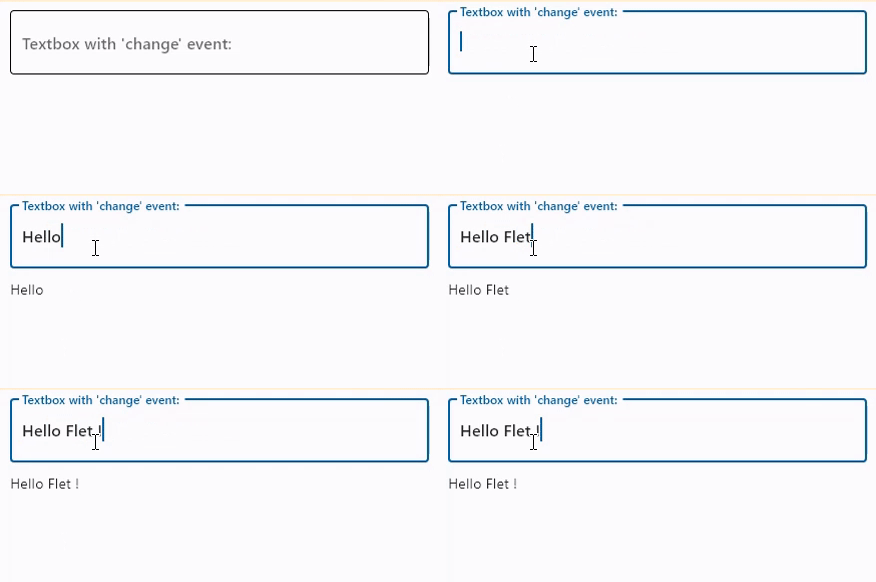
TextField with on_change event
- Python
import flet as ft

def main(page: ft.Page):
    def textbox_changed(e):
        t.value = e.control.value
        page.update()

    t = ft.Text()
    tb = ft.TextField(
        label="Textbox with 'change' event:",
        on_change=textbox_changed,
    )

    page.add(tb, t)

ft.app(target=main)
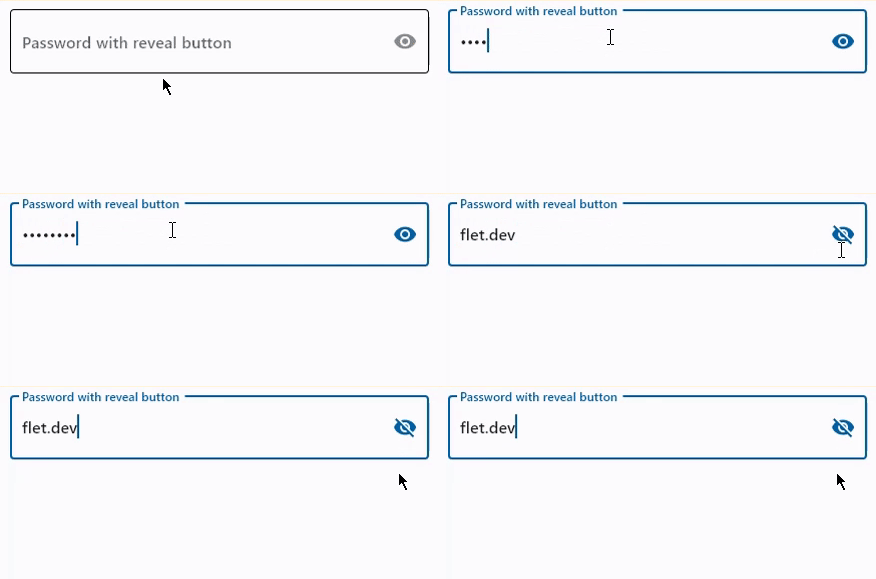
Password with reveal button
- Python
import flet as ft

def main(page: ft.Page):
    page.add(
        ft.TextField(
            label="Password with reveal button", password=True, can_reveal_password=True
        )
    )

ft.app(target=main)
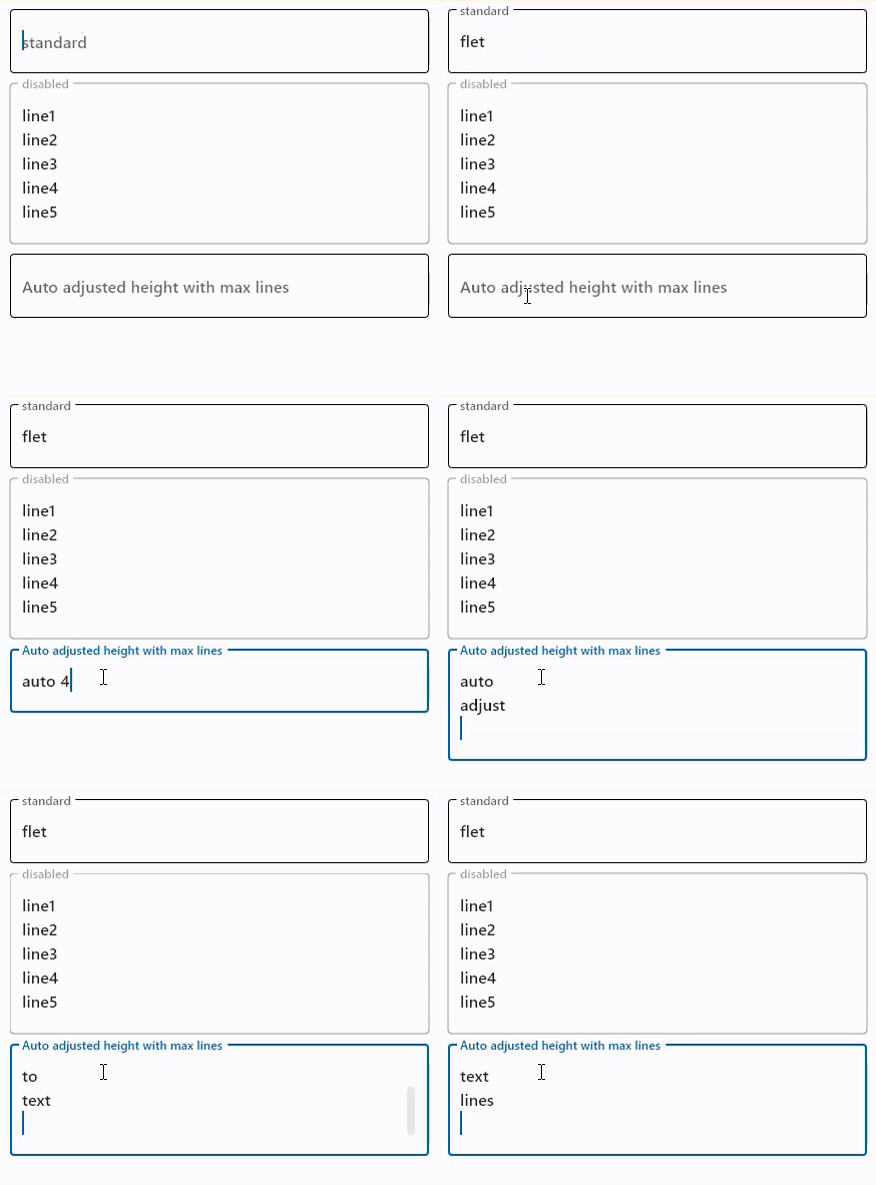
Multiline TextFields
- Python
import flet as ft

def main(page: ft.Page):
    page.add(
        ft.TextField(label="standard", multiline=True),
        ft.TextField(
            label="disabled",
            multiline=True,
            disabled=True,
            value="line1\nline2\nline3\nline4\nline5",
        ),
        ft.TextField(
            label="Auto adjusted height with max lines",
            multiline=True,
            min_lines=1,
            max_lines=3,
        ),
    )

ft.app(target=main)
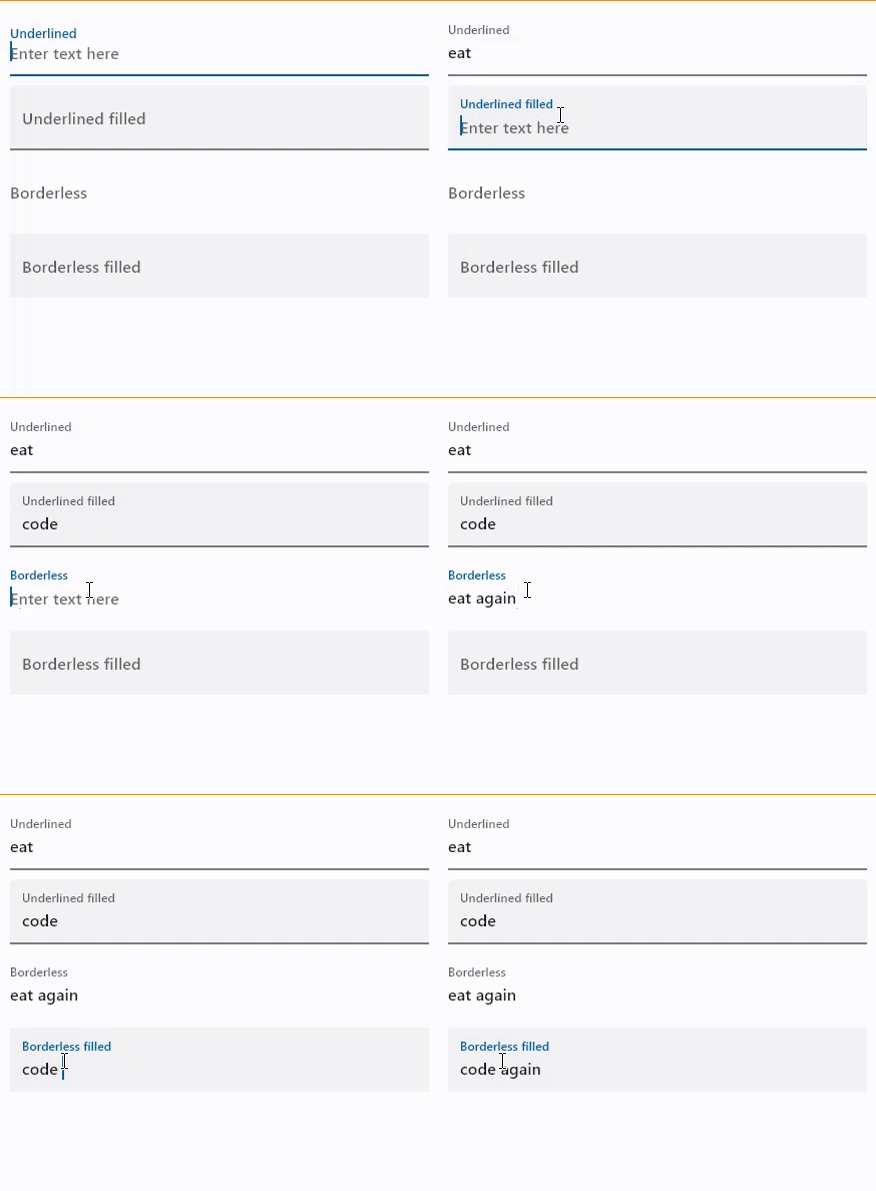
Underlined and borderless TextFields
- Python
import flet as ft

def main(page: ft.Page):
    page.add(
        ft.TextField(label="Underlined", border="underline", hint_text="Enter text here"),
        ft.TextField(
            label="Underlined filled",
            border=ft.InputBorder.UNDERLINE,
            filled=True,
            hint_text="Enter text here",
        ),
        ft.TextField(label="Borderless", border="none", hint_text="Enter text here"),
        ft.TextField(
            label="Borderless filled",
            border=ft.InputBorder.NONE,
            filled=True,
            hint_text="Enter text here",
        ),
    )

ft.app(target=main)
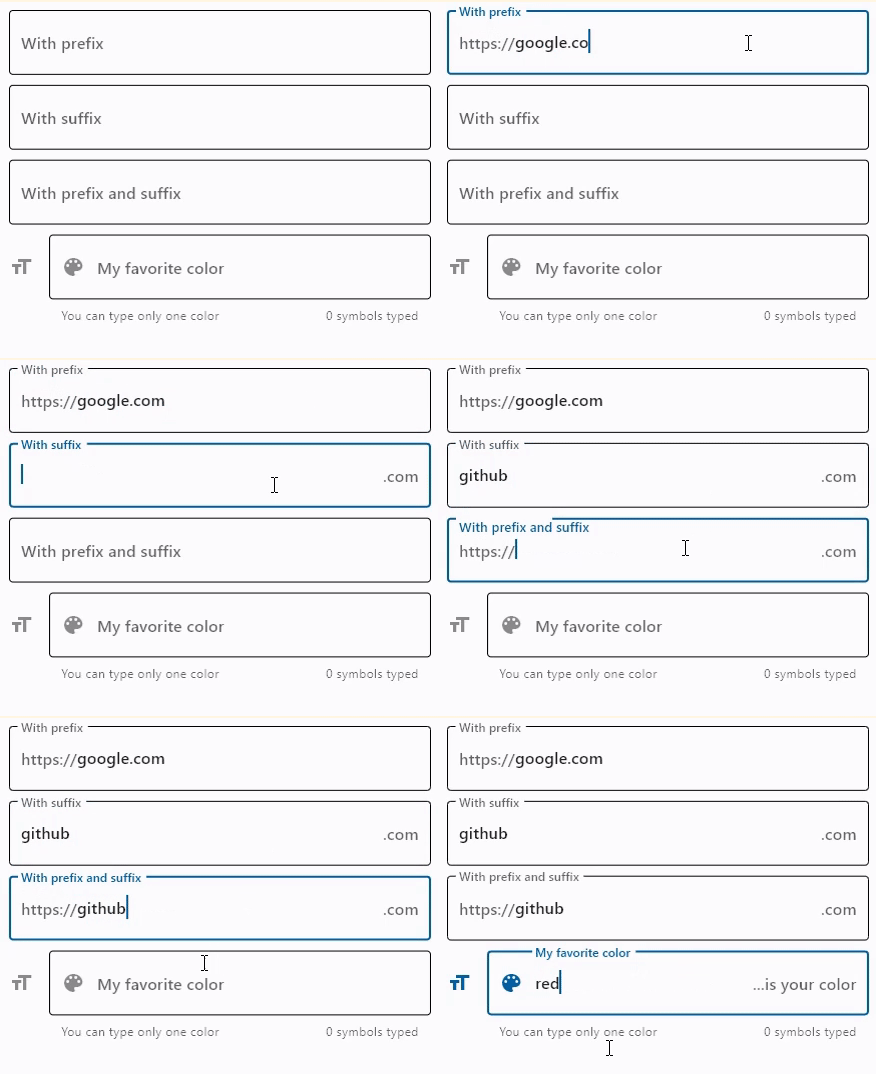
TextFields with prefixes and suffixes
- Python
import flet as ft

def main(page: ft.Page):
    page.add(
        ft.TextField(label="With prefix", prefix_text="https://"),
        ft.TextField(label="With suffix", suffix_text=".com"),
        ft.TextField(
            label="With prefix and suffix", prefix_text="https://", suffix_text=".com"
        ),
        ft.TextField(
            label="My favorite color",
            icon=ft.icons.FORMAT_SIZE,
            hint_text="Type your favorite color",
            helper_text="You can type only one color",
            counter_text="0 symbols typed",
            prefix_icon=ft.icons.COLOR_LENS,
            suffix_text="...is your color",
        ),
    )

ft.app(target=main)
Properties
autofocus
True if the control will be selected as the initial focus. If there is more than one control on a page with autofocus set, then the first one added to the page will get focus.
bgcolor
TextField background color.
border
Border around input - InputBorder enum with one of the values: OUTLINE (default), UNDERLINE, NONE.
border_color
Border color. Could be transparent to hide the border.
border_radius
See [Container.border_radius] property docs for more information about border radius.
border_width
The width of the border in virtual pixels. Default is 1. Set to 0 to completely remove border.
can_reveal_password
Displays a toggle icon button that allows revealing the entered password.
capitalization
Enables automatic on-the-fly capitalization of entered text.
Property value is TextCapitalization enum with the following values:
NONE(default) - do not change entered text.CHARACTERS- every entered symbol is capitalized.WORDS- capitalize the first letter of every word.SENTENCES- capitalize the first letter of every sentence.
color
Text color.
content_padding
The padding for the input decoration's container.
See Container.padding for more information about padding and possible values.
counter_style
The style to use for counter_text.
counter_text
Optional text to place below the line as a character count.
If null or an empty string and counter isn't specified, then nothing will appear in the counter's location.
cursor_color
The color of TextField cursor.
cursor_height
Sets cursor height.
cursor_radius
Sets cursor radius.
cursor_width
Sets cursor width.
dense
Whether the TextField is part of a dense form (ie, uses less vertical space).
error_style
The style to use for error_text.
error_text
Text that appears below the input border.
If non-null, the border's color animates to red and the helper_text is not shown.
filled
If True the decoration's container is filled with theme fillColor.
focused_bgcolor
Background color of TextField in focused state.
focused_border_color
Border color in focused state.
focused_border_width
Border width in focused state.
focused_color
Text color when TextField is focused.
helper_style
The style to use for helper_text.
helper_text
Text that provides context about the input's value, such as how the value will be used.
If non-null, the text is displayed below the input decorator, in the same location as error_text. If a non-null error_text value is specified then the helper text is not shown.
hint_style
The style to use for hint_text.
hint_text
Text that suggests what sort of input the field accepts.
Displayed on top of the input when the it's empty and either (a) label is null or (b) the input has the focus.
icon
The name of the icon to show before the input field and outside of the decoration's container.
keyboard_type
The type of keyboard to use for editing the text. The property value is KeyboardType enum with the following values:
TEXT(default)MULTILINENUMBERPHONEDATETIMEEMAILURLVISIBLE_PASSWORDNAMESTREET_ADDRESSNONE
label
Optional text that describes the input field.
When the input field is empty and unfocused, the label is displayed on top of the input field (i.e., at the same location on the screen where text may be entered in the input field). When the input field receives focus (or if the field is non-empty) the label moves above, either vertically adjacent to, or to the center of the input field.
label_style
The style to use for label.
max_length
Limits a maximum number of characters that can be entered into TextField.
max_lines
The maximum number of lines to show at one time, wrapping if necessary.
This affects the height of the field itself and does not limit the number of lines that can be entered into the field.
If this is 1 (the default), the text will not wrap, but will scroll horizontally instead.
min_lines
The minimum number of lines to occupy when the content spans fewer lines.
This affects the height of the field itself and does not limit the number of lines that can be entered into the field.
Default is 1.
multiline
True if TextField can contain multiple lines of text.
password
Whether to hide the text being edited. Default is False.
prefix
Optional Control to place on the line before the input.
This can be used, for example, to add some padding to text that would otherwise be specified using prefix_text, or to add a custom control in front of the input. The control's baseline is lined up with the input baseline.
Only one of prefix and prefix_text can be specified.
The prefix appears after the prefix_icon, if both are specified.
prefix_icon
An icon that appears before the prefix or prefix_text and before the editable part of the text field, within the decoration's container.
prefix_style
The style to use for prefix_text.
prefix_text
Optional text prefix to place on the line before the input.
read_only
Whether the text can be changed.
When this is set to True, the text cannot be modified by any shortcut or keyboard operation. The text is still selectable.
Defaults to False.
selected_color
The color of TextField selection.
shift_enter
Changes the behavior of Enter button in multiline TextField to be chat-like, i.e. new line can be added with Shift+Enter and pressing just Enter fires on_submit event.
suffix
Optional Control to place on the line after the input.
This can be used, for example, to add some padding to the text that would otherwise be specified using suffix_text, or to add a custom control after the input. The control's baseline is lined up with the input baseline.
Only one of suffix and suffix_text can be specified.
The suffix appears before the suffix_icon, if both are specified.
suffix_icon
An icon that appears after the editable part of the text field and after the suffix or suffix_text, within the decoration's container.
suffix_style
The style to use for suffix_text.
suffix_text
Optional text suffix to place on the line after the input.
text_align
How the text should be aligned horizontally.
Property value is TextAlign enum with the following values:
LEFT(default)RIGHTCENTERJUSTIFYSTARTEND
text_size
Text size in virtual pixels.
text_style
The style to use for the text being edited.
value
Current value of the TextField.
Methods
focus()
Moves focus to a TextField.
Events
on_blur
Fires when the control has lost focus.
on_change
Fires when the typed input for the TextField has changed.
on_focus
Fires when the control has received focus.
on_submit
Fires when user presses ENTER while focus is on TextField.